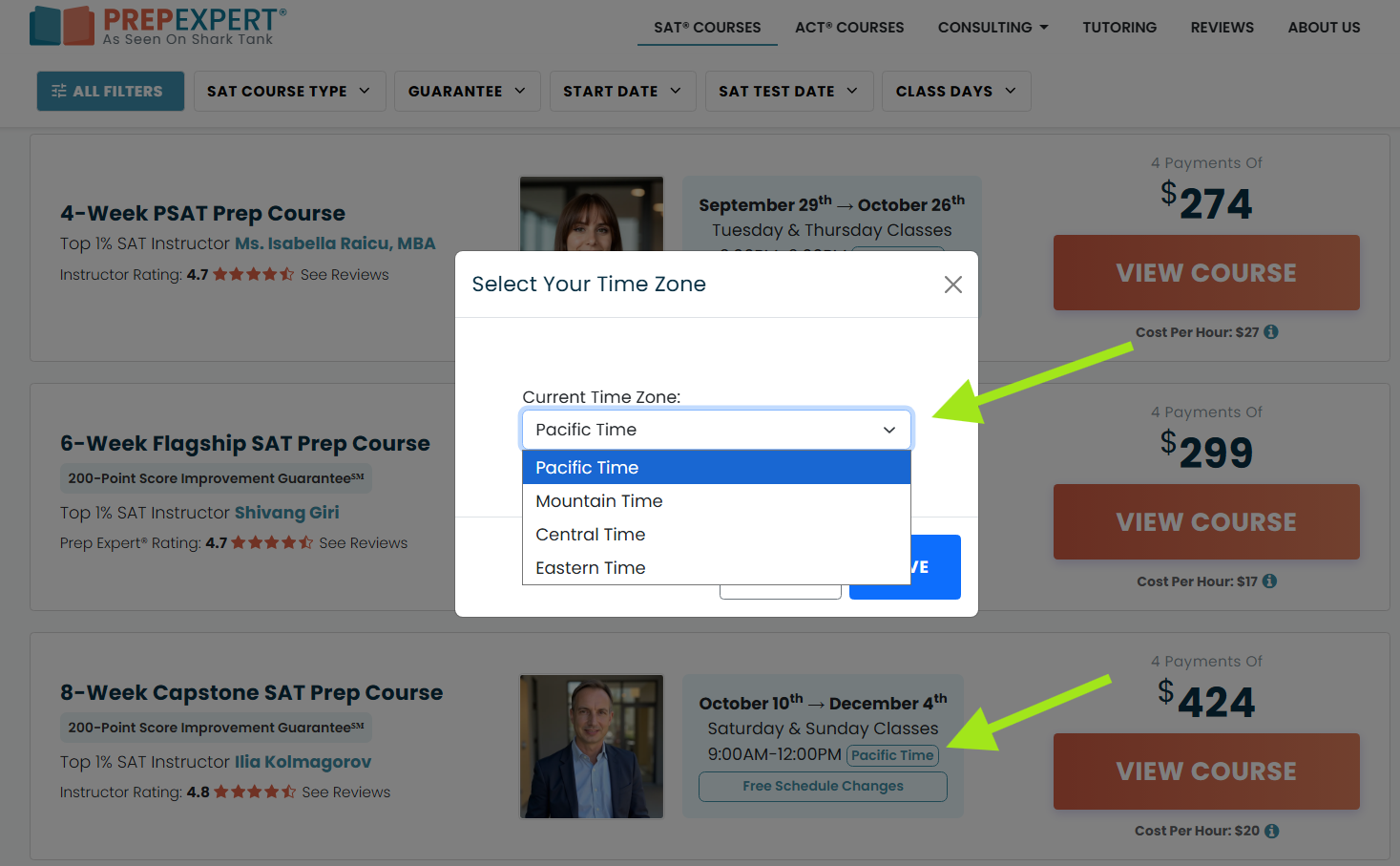
Course times on the Prep Expert website are displayed in Pacific Time by default. Your confirmation email may show the same class in a different time zone, which can make the start time look different.
To change the time zone shown on the course page:
- Find your course on the course page.
- Click “Pacific Time” next to the listed class time.
- Select Pacific, Mountain, Central, or Eastern Time.
- The displayed class time will automatically update.
Always check the time zone listed next to the class time when reviewing your schedule.