
How to Join Your Live Class
- Log in to your Prep Expert Student Dashboard.
- Select the correct course from your dashboard.
- Click "Course Access & Recordings."
- Select "Join Live Classroom."
- Complete the Prep Expert class registration page if prompted. Make sure you're also signed in to your Zoom account.
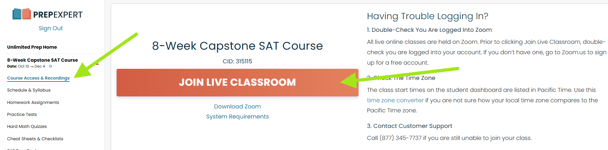
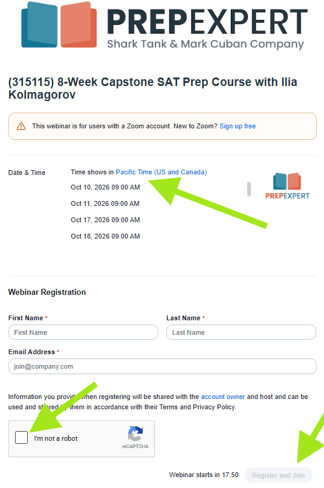
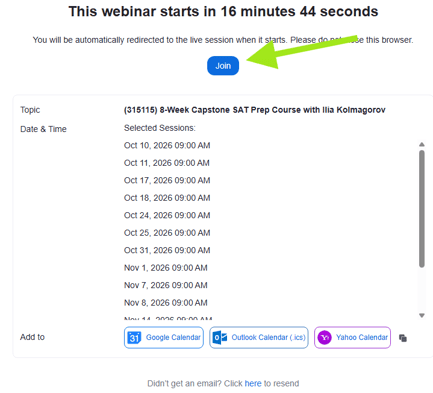
Once registration is complete, you should be able to join your classroom through Zoom.
Important: You do not need to manually enter a Zoom meeting ID or your Prep Expert course ID. Always access your classroom through your Student Dashboard.
Troubleshooting Common Access Issues
1. My Email Isn't Working or It Says I'm Not Registered
You may be asked to register before joining your class, even if you've attended previous lessons.
If the registration page doesn't recognize your information:
- Try registering with the student's email address.
- If that doesn't work, try the parent's email address or the email used when enrolling in Prep Expert.
- Make sure you're signed in to Zoom with the same email you're using for registration.
- Complete all required registration fields and try joining again.
If none of these email addresses work, try refreshing the page or using a different browser.
2. The Registration Button Is Grayed Out or Nothing Happens
If you can't click "Register and Join" or the page isn't responding, try the following:
- Refresh the page and complete the registration again.
- Make sure all required fields are filled out.
- Close any duplicate classroom or Zoom tabs.
- Clear your browser's cache and cookies.
- Try another browser, such as Chrome, Safari, or Edge.
- Restart your browser or try another device.
How to clear your cache and cookies: Open your browser's Settings, find "Privacy and Security" or "Clear Browsing Data," and select cookies and cached files. Then log back into your Student Dashboard and try again.
3. Zoom Is Asking Me for a Meeting ID
You do not need a meeting ID to join your Prep Expert class.
Instead, return to your Student Dashboard, select your course, click "Course Access & Recordings," and then "Join Live Classroom."
Avoid using old or bookmarked classroom links, as these may be outdated or cause access issues.
4. Zoom Says the Webinar Has Expired or I'm in a Waiting Room
First, check your course's scheduled date and time.
- Class hasn't started: You may need to wait for the instructor to begin the session.
- Class has already ended: The live classroom may no longer be available.
- Incorrect course selected: If you have multiple courses, make sure you're accessing your current, active course rather than a previous one.
If you missed a class, recordings are typically posted within 48 hours and can be found under "Course Access & Recordings" on your dashboard.
5. I'm Signed Into Zoom but Still Can't Join
If you've completed registration but are still unable to access your class:
- Sign out of Zoom and sign back in.
- If you're using the Zoom application, make sure you're signed in there as well.
- Close any open classroom or registration tabs.
- Return to your Student Dashboard and click "Join Live Classroom" again.
- If the issue continues, clear your browser's cache and cookies or try another browser or device.
If you're still unable to join your class after trying these steps, please contact Prep Expert Support.
To help us troubleshoot quickly, please provide:
- Your order number, found under "Order History" on your Student Dashboard.
- A screenshot or description of the error you're experiencing.
You can reach our Customer Support Team by emailing support@prepexpert.com, calling (877) 345-7737, or chatting with us on our website.
We recommend reaching out as soon as you experience an issue so we can help you access your class.