We can't wait to embark on this academic journey with you and your All Access Pass for High Achieving Students!
We understand that you may be wondering where and how to start.
Don't worry, it's simpler than you think, and we're here to assist you! When you're ready to enroll in a course, follow these simple steps:
- Navigate to the Student Dashboard.
- Click Add SAT/PSAT Courses and/or Add ACT Courses to view the available course options.
- Review the available dates and times to find the best fit for your student.
You can click Pacific Time to change the schedule to your local time zone. - Click View Course on the course you are interested in.
- Click Enroll.
- You will be redirected back to your Student Dashboard, where the course will now appear. If you do not see it right away, refresh the page.
- If you are unable to add a course, contact us at allaccess@prepexpert.com or support@prepexpert.com for assistance.
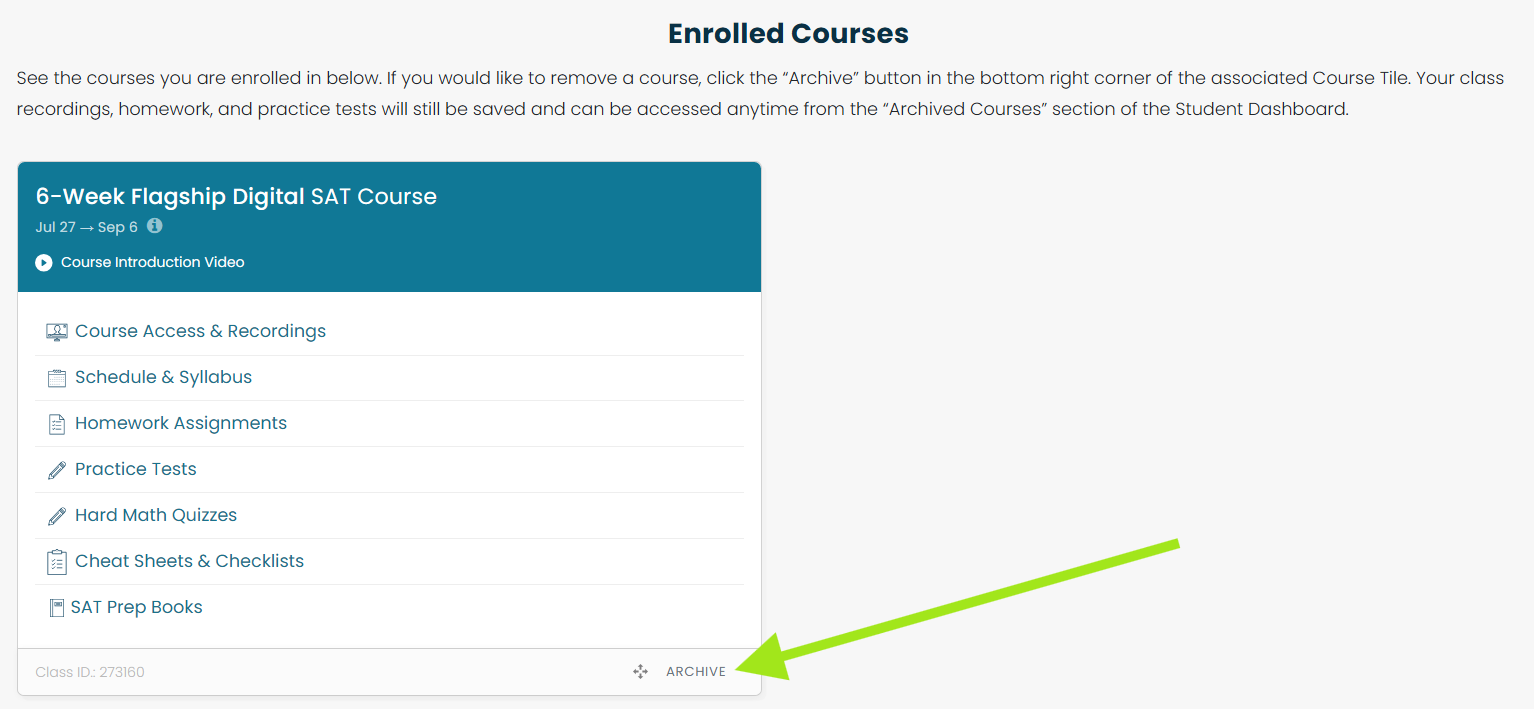
To remove a course you no longer want, click Archive in the bottom-right corner of the course tile on your Student Dashboard.
All Access Pass: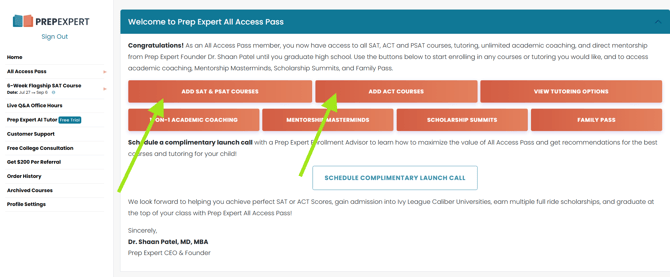
Unlimited Prep: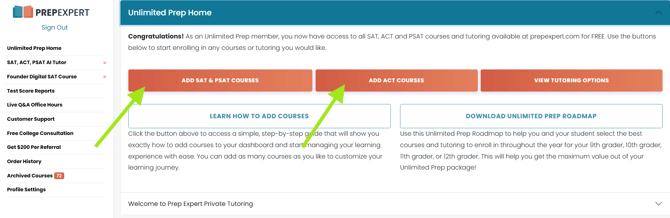
Removing A Course: